
Aztek Web Team
Our focus is on growth: growing website results and, ultimately, growing business through strategic website design, development, and digital marketing.

This is part 2 of our multi-part series: Get More Out of Google Analytics. If you missed it, make sure to read part 1: Getting Started with Google Analytics.
In our last post, we talked about how you can set up a new Google Analytics account with the new Universal tracking code.
But what if you already have an account and aren’t sure whether you have Universal Analytics? Or what if you know you don’t have Universal Analytics but can’t figure out how to upgrade?
Today’s blog post will answer both questions.
Fortunately, this is pretty easy. All you need to know is what browser you are using. If you use Google Chrome, Internet Explorer, or Mozilla Firefox:
If you use Safari, follow this same process, except click Ctrl + Alt + U (the control button, Alt button, and U button) for step 2.
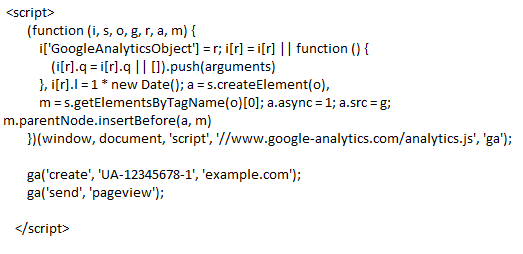
For reference, here's what the code should look like:
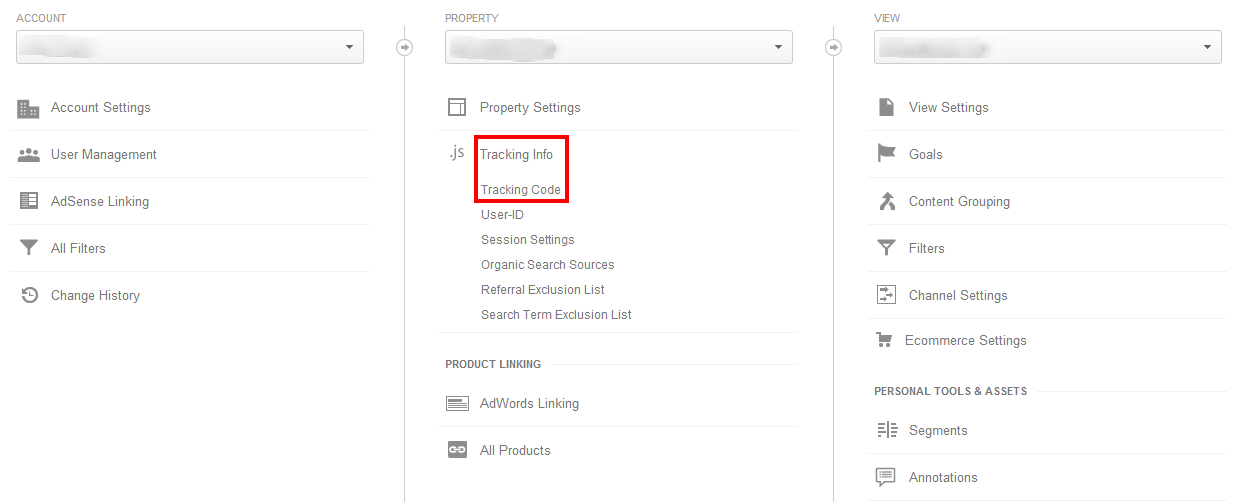
To do this, you will need full administrative access to your Google Analytics account. If you are not currently set up as an administrative user, contact the account owner and request it. You can use Google’s Add/modify/delete users page to help with the process.
Once you are an administrator:
That's it!
If you’re a critical thinker or just plain curious, you might be asking if it’s worth all this effort to update your Google Analytics tracking code. We say of course it is!
So in order to satisfy your curiosity, keep a weathered eye for our next post: What’s the Big Deal With Universal Analytics?
Previous Posts in this series:
Our focus is on growth: growing website results and, ultimately, growing business through strategic website design, development, and digital marketing.